

TNT SIM Registration: How to Resolve Photo Glare Issues
When you’re signing up or re‑registering your TNT SIM in the Philippines, you’ll need to upload a photo of your valid ID and sometimes a selfie. If your photo has too much glare — like shiny spots or bright reflection — the system may reject it. That can slow down your registration or cause errors. Here’s how to fix that without stress.

Why Photo Glare Happens
Glare usually comes from bright lights, direct sunlight, or flash bouncing off your ID’s surface. Phones and scanners can pick up the shiny parts, making text blurry or unreadable. If the system can’t clearly see your ID information, it won’t accept the photo. Simple lighting problems like these are among the main reasons uploads fail.You can also read:Can TNT SIM Registration Be Done Abroad?
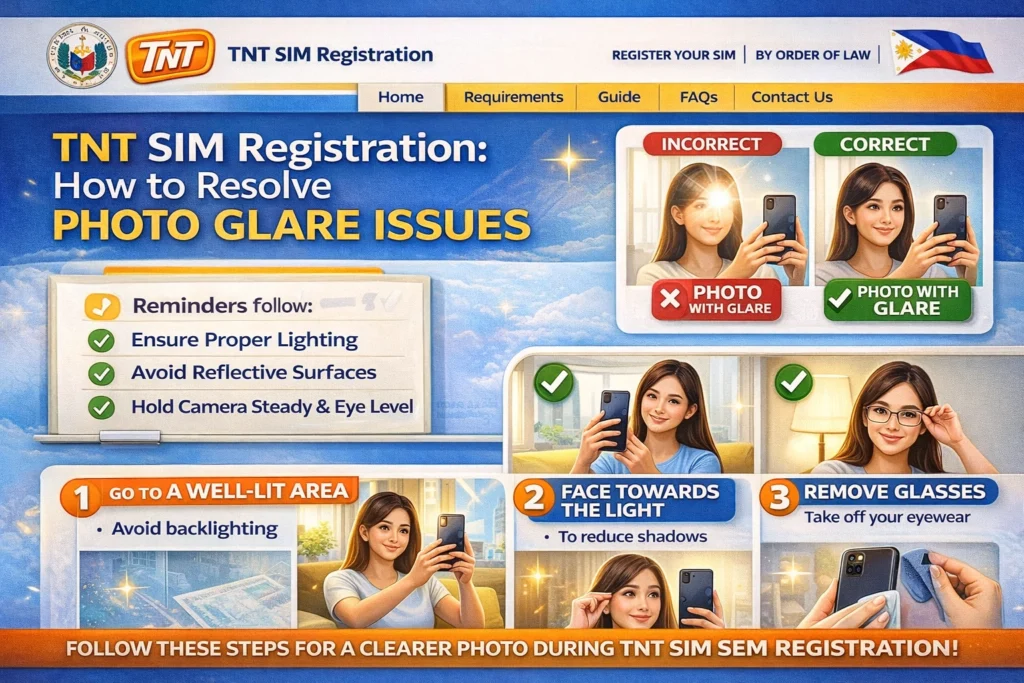
How to Take a Photo Without Glare
Follow these friendly, easy tips to take a clean ID photo that the system will accept:
Take your photo indoors with plenty of light, but not direct sunlight. A shaded area near a window works great. Avoid harsh light facing the ID directly — that’s what causes glare.
Instead of holding your ID flat to the camera, tilt it just a little. This helps avoid reflection from lights or your phone flash.
Upload the list of employees or devices needing SIM cards.
Make sure the whole ID card is in the frame, not cut off, and that all text and your photo are easy to see.
A dust‑smudged lens can blur or scatter light, worsening glare. Quick wipe with a soft cloth can make a big difference.
Tips for Better Selfies (If Needed)
Some SIM registration portals also ask for a selfie photo to match your ID. Here’s how to avoid glare there too:
What If the Photo Still Gets Rejected?
If you try these tips and your photo still won’t upload:
Check the file format and size — it should be in JPG, PNG, or PDF and often under a certain MB limit.
Use a different device or browser — sometimes certain phones or apps don’t play nicely with upload portals.
Try another lighting setup — sometimes moving near a window or using a lamp with soft light helps.
FAQs
Final Words
Photo glare issues are one of the most common bumps in TNT SIM registration, but they’re usually easy to fix. With soft lighting, a clean camera, and a few simple adjustments, you’ll upload an acceptable photo quickly and continue your SIM registration with no hassle.
If you’re still having trouble, try a different device or ask someone to help take the photo — two extra eyes often make things easier!